Voice memo keeper
You recorded an interview note on an iPhone and need to understand a few quiet sentences over steady room noise.
Preserve the original, test the problem passage, and prioritize intelligible words over a silent background.
Recording guide
Is there a way to remove background noise from audio on iPhone? Often, yes—but the result depends on whether the voice remains audible beneath the noise. A voice cleaner can help with some recordings; it cannot recover words the microphone never captured.
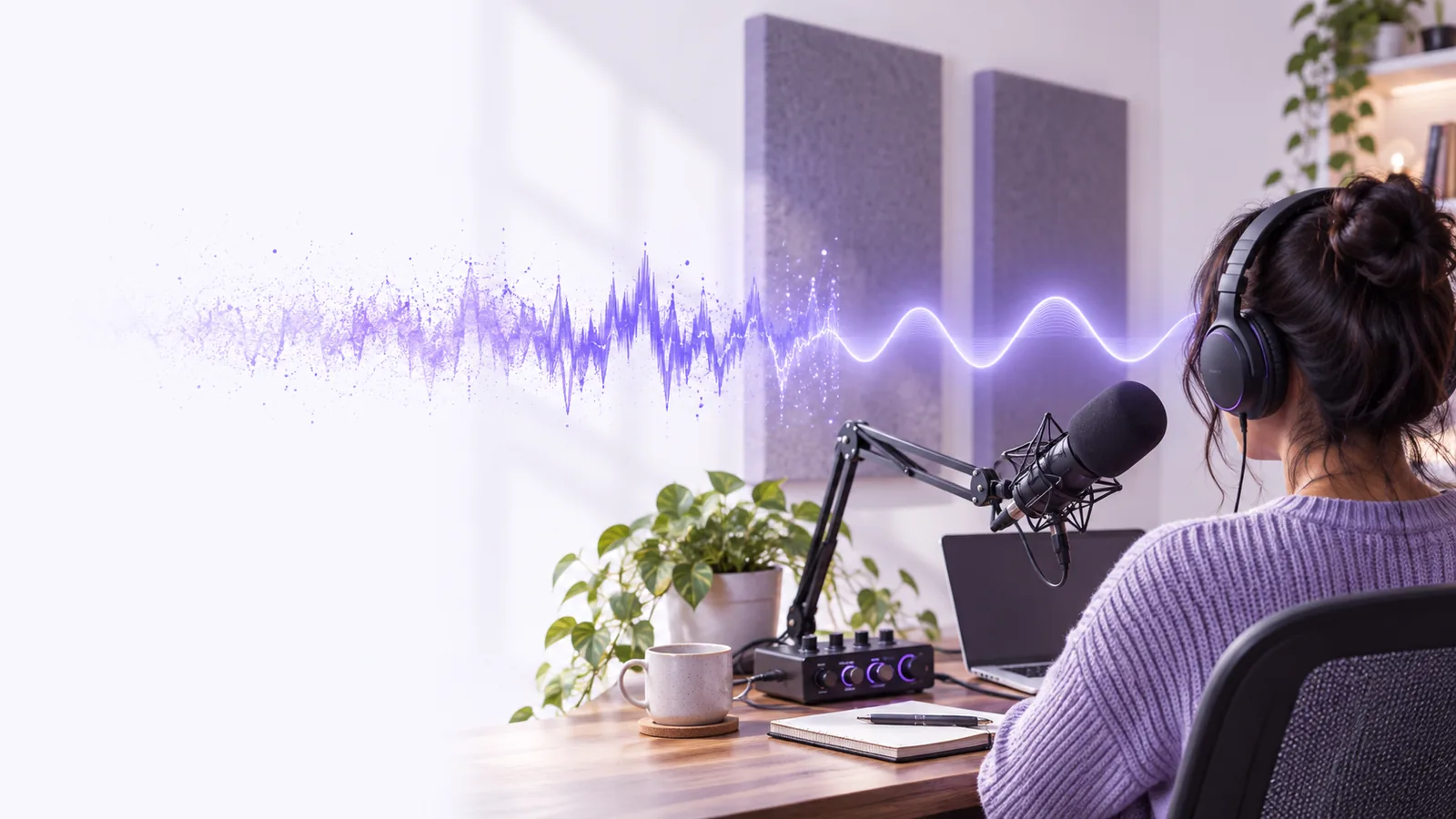
The goal is understandable speech, not absolute silence. Identify the noise first, then choose a sensible route for the recording you need to keep.
An iPhone voice cleaner is worth evaluating against the actual problem in your clip. These limits matter more than a perfectly quiet pause.
When a nearby conversation masks the speaker, both voices occupy much of the same range. Cleanup may alter the overlap without making every word intelligible.
What to do instead
If the words matter and another take is possible, record again nearer the intended speaker.
A voice cleaner cannot reliably reconstruct detail lost when a microphone overloaded or a word was too quiet to capture.
What to do instead
Check the original at a comfortable volume before processing; rerecord important passages when the speech itself is missing.
Wind gusts, passing vehicles and handling bumps are less predictable than a steady hum. Aggressive reduction can leave speech sounding watery or broken.
What to do instead
Test a short passage with both noise and speech, and prefer a lighter result when consonants begin to disappear.
Sending a clip to an external service is different from editing a file solely on your iPhone. Do not assume an online route keeps processing on the device.
What to do instead
Review the destination's privacy information and remove sensitive material before sharing a recording.
Work from a copy so you can compare the result with the unedited iPhone recording.
Play a quiet passage and a sentence containing important words. Note whether the issue is constant hiss, a low hum, wind, traffic or another voice; the same voice cleaner setting will not suit every type of noise.
Use a portion that includes both speech and the unwanted sound. If you explore a voice cleaner through Voicecleaner, check its available input options before committing the full clip; do not assume every iPhone recording can be opened directly.
Switch between original and processed versions at similar listening levels. Keep the version that preserves names, soft syllables and natural tone, even if a little background sound remains.
A quieter recording is not necessarily a clearer one. Listen for missing consonants and unnatural changes around the edges of words.


These images illustrate the listening comparison; they are not screenshots or proof of an audio transformation. If processing makes the voice sound metallic, return to the original and try a less forceful approach.
Before: identify competing soundAfter: check speech clarityThe right next step depends on what you recorded, what you can rerecord and where the finished voice will be heard.
You recorded an interview note on an iPhone and need to understand a few quiet sentences over steady room noise.
Preserve the original, test the problem passage, and prioritize intelligible words over a silent background.
Wind and traffic enter a clip while you are speaking. A voice cleaner may help less when gusts cover whole syllables.
Check whether a sheltered rerecording is possible before spending time on heavy processing.
Your iPhone video has usable pictures but distracting sound behind the narration.
Check how to retain picture-to-speech timing while evaluating an audio cleanup path.
A remote guest's phone recording contains a persistent fan or air-conditioning sound.
Compare short sections before editing the whole conversation, especially where the guest speaks softly.
Use this comparison to decide whether another take would solve more than processing the existing file.
| Rerecord on iPhone | Clean an existing recording | |
|---|---|---|
| When it fits | The speaker is available and the moment can be repeated. | The moment cannot be repeated or a new take is impractical. |
| Steady background sound | Move away from the source or turn it off before recording. | Test whether reduction improves speech without audible artifacts. |
| Wind hitting the microphone | Find shelter and shield the microphone from direct gusts. | Expect uneven results where wind has overwhelmed words. |
| Distant speaker | Bring the iPhone closer, with the speaker's permission. | Raising or cleaning a faint voice may also expose noise. |
| Missing words | Ask for the sentence again when possible. | Do not rely on a voice cleaner to restore uncaptured speech. |
| Original file | Keep the previous take until the replacement is checked. | Keep an untouched copy for direct listening comparisons. |
If another take is not possible, explore Voicecleaner as a route for evaluating your recording. Confirm the available input options and compare any result with your original iPhone audio before using it in a finished project.
Yes, you can try improving how you record or evaluate a cleanup tool for an existing clip. Results depend on the noise and how clearly the voice was captured; keep the original so you can check whether processing actually improves the words.
You can assess an existing voice memo for cleanup, but the available steps depend on the editing route you choose and its supported inputs. Save an untouched copy first, then test a short section that contains both speech and noise.
Not necessarily. Wind can strike the microphone hard enough to obscure syllables, and strong reduction may make the remaining voice sound unnatural. Compare the result against the original before keeping it.
Rerecord when you can repeat the moment and the original has clipped, distant or masked words. Consider cleanup when the recording cannot be repeated and the voice is still understandable beneath the unwanted sound.