Podcast editor
A close microphone track sounds dull and uneven after a conversational recording.
Use gentle high-pass EQ, a small presence lift, and compression to make speech more consistent.
Audacity workflow
How to make voice crisp in audacity starts with a clean recording, sensible levels, and small processing moves. Use this practical sequence to improve speech without making it harsh, thin, or obviously over-processed.
Related paths
Choose the route that matches your source material, then return to Audacity for detailed manual control when you need it.
Choose your starting point
The best Audacity chain depends on the recording problem, not on adding every available effect.
A close microphone track sounds dull and uneven after a conversational recording.
Use gentle high-pass EQ, a small presence lift, and compression to make speech more consistent.
A talking-head clip has usable speech but the voice sits behind music and room tone.
Clean the voice before mixing so you can lower competing audio instead of over-processing the dialogue.
You want a quick comparison before committing to a longer manual session in Audacity.
Review the Adobe-oriented workflow, then use Audacity when you want to inspect each effect yourself.
A home recording has light background noise and inconsistent speaking distance.
Reduce noise conservatively, normalize the level, and preserve natural breaths and consonants.
The complete pass
Work from repair to tone, then finish with level control. Audition each change instead of stacking effects by habit.
Duplicate the original, remove obvious silence or handling noise, and select a short section containing both speech and room tone. Keep the untouched copy available for comparison.
Use Noise Reduction only when the noise is steady, then try a high-pass filter below the useful speech range. Add a restrained presence lift if the voice still sounds closed-in.
Apply light compression, normalize or limit the final level, and listen on headphones and speakers. Bypass the effects to confirm that clarity improved without changing the speaker’s character.
Starting settings
These are starting points, not fixed rules. Adjust by ear and watch the waveform so processing supports intelligibility rather than loudness alone.
| Problem | Audacity starting move | |
|---|---|---|
| Low rumble | Leave the original track untouched for reference. | Try a high-pass filter around 70–100 Hz, then check that the voice has not become thin. |
| Steady hiss or fan noise | Capture a short noise-only profile if one is available. | Use Noise Reduction lightly and compare the result for metallic or watery artifacts. |
| Dull consonants | Do not boost the entire track immediately. | Try a modest presence lift around the upper mids, then reduce it if sibilance becomes sharp. |
| Uneven volume | Avoid raising quiet sections manually before checking dynamics. | Use gentle compression with a moderate ratio and listen for pumping between phrases. |
| Peaks that clip | Do not normalize a distorted recording back into clarity. | Repair or replace clipped material where possible, then leave headroom before final export. |
| Final loudness | Do not judge quality from waveform size alone. | Normalize or limit only after cleanup, and compare at the same listening level. |
What it cannot fix
Audacity can improve a usable recording, but no effect chain can recreate speech that was never captured clearly.
If the microphone input was recorded above its limits, distortion may be permanently printed into the waveform.
What to do instead
Try a restoration tool for a salvage attempt, or re-record closer to a safe input level.
Traffic, music, voices, and other moving sounds overlap the same frequencies as speech, so aggressive reduction can create artifacts.
What to do instead
Use the least reduction that helps, edit the noisiest gaps, or record in a quieter space.
Reverberation is part of the voice recording, not a constant noise floor, so basic Noise Reduction will not remove it well.
What to do instead
Use closer microphone placement and soft furnishings next time; treat the current file conservatively.
EQ can reveal useful presence, but excessive boosting also reveals harshness, mouth noise, and background detail.
What to do instead
Make small tonal changes and prioritize microphone distance, placement, and recording level.
Keep it measured
These practical values give you a controlled place to begin; the right result still depends on the speaker, microphone, and room.
Before and after
A successful pass should make words easier to follow while keeping the speaker recognizable and the room believable.

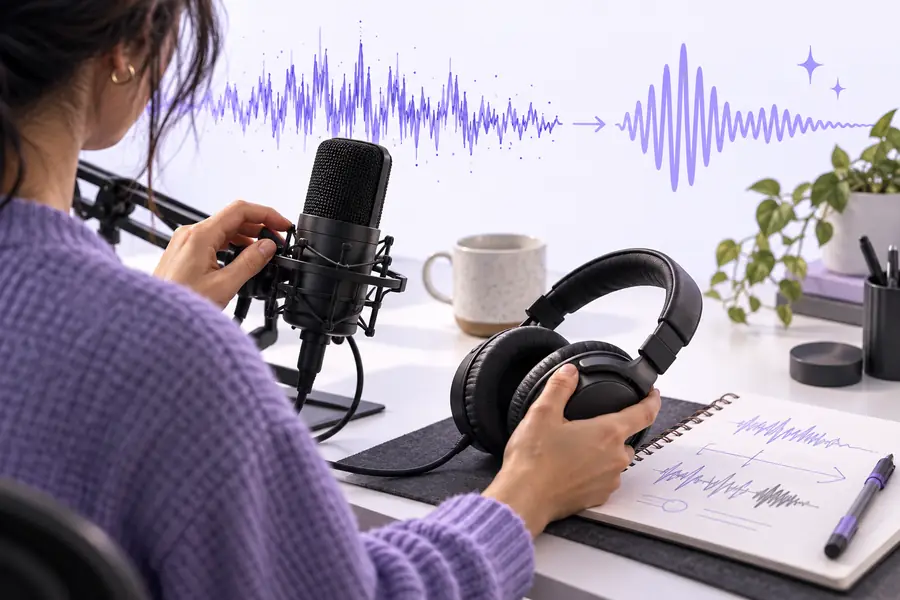
Compare at the same playback volume, with effects bypassed between listens.
Untreated voiceCleaned voiceNext step
If Audacity feels too manual for the first pass, send the recording through Voicecleaner and review the result before deciding how much finishing work you still want to do in the editor.
Common questions
Start with a clean duplicate of the recording, reduce steady noise carefully, and use a high-pass filter to remove unnecessary low rumble. Then try a small presence boost and gentle compression, checking the untreated track after every change.
No single effect works for every recording. Equalization can improve muffled speech, compression can steady uneven volume, and Noise Reduction can help with constant background noise when used conservatively.
Too much Noise Reduction can create watery, metallic, or hollow artifacts because speech and noise overlap. Undo it, use a smaller reduction amount, and consider editing only the noisiest gaps instead of processing the entire track.
For most spoken recordings, clean unwanted noise and shape the tone before final level control. Gentle compression can come before normalization or limiting, while the final level adjustment should be checked after the main processing is complete.